> ## Documentation Index
> Fetch the complete documentation index at: https://docs.iblueprint.ai/llms.txt
> Use this file to discover all available pages before exploring further.
# Projects: Plan and Execute AI Work in Blueprint
> A hands-on learning lab for planning goals, generating tasks, and running project work with AI agents in Blueprint.
> **Time required:** 30–45 minutes
**You will build:** a governed Blueprint Project with an AI-planned goal, a reviewed task board, and a Project Studio you can operate from every day.
This is a workshop, not a reference page. You will create a Project, let Blueprint plan a goal into tasks, review what the AI proposed, and then work the plan from the Project Studio. By the end, you should be able to explain how goals become tasks, who is accountable, and where a human stays in control.
## What you will learn
You will practice how to:
* Create a Project with the right status, visibility, and tags.
* Turn a goal into a reviewed set of tasks using the New Goal flow.
* Match a goal against existing Blueprints and auto-assign AI agents responsibly.
* Read and work the Task Board without losing sight of blocked or in-review work.
* Operate a Project from Project Studio, including Chat, Agents, and Tools.
* Apply governance and review guidance before AI-generated work reaches a customer or a system of record.
## Before you start
You need:
* A Blueprint account and access to an organization where you can create Projects.
* Permission to create Projects, Goals, and Tasks in that organization.
* An active AI connection and at least one available model.
* A plan with room for another Project. If you have already reached your Projects limit, see the troubleshooting callout below before you begin.
* Synthetic sample data only. Do not paste real customer records, contracts, or secrets into the exercise.
**Plan capacity.** If you try to add a second Project and see **"You have reached your projects limit (1). Add an extra on the usage page or upgrade your plan."**, your organization is at its Projects allowance. Open the usage page from your organization settings to buy an extra Project, upgrade the plan, or archive an existing Project before continuing this lab.
## The learning challenge
Plan and execute this Project:
> Launch a small internal knowledge refresh: gather the top 10 questions the support team gets, draft answers grounded in existing policy, review them with a human, and publish a short internal FAQ.
Keep this scenario visible while you work. It is safe to run end to end with synthetic content, and it exercises every part of a Project: a clear goal, AI-generated tasks, a task board with review and blocked states, and a Project Studio for day-to-day operation.
## Step 1 — Create the Project
From **Org Home**, open **Projects**, then choose **Add Project**. Blueprint opens the **Create Project** form.
Fill it in as follows for the lab scenario:
| Field | What to enter | Why it matters |
| ----------- | ------------------------------------------------------------- | ---------------------------------------------------------------------------------------------------------------- |
| Name | `Internal FAQ Refresh` | Shown everywhere the Project appears. Make it specific. |
| Code | `FAQ-REFRESH` (optional) | Short code you can reference in tags, tasks, and conversations. |
| Status | `Active` | Use `Planned` for work you are scoping, `Suspended` to pause, `Archived` to close out. |
| Visibility | `Private` | Start private for a learning lab. Widen to `Organization` or `Public` only when the Project is ready to be seen. |
| Tags | `lab`, `faq`, `internal` | Tags drive filtering and reporting across Projects. |
| Description | One or two sentences describing the outcome and the audience. | Anchors the goals and tasks you will generate next. |
Choose **Create Project**.
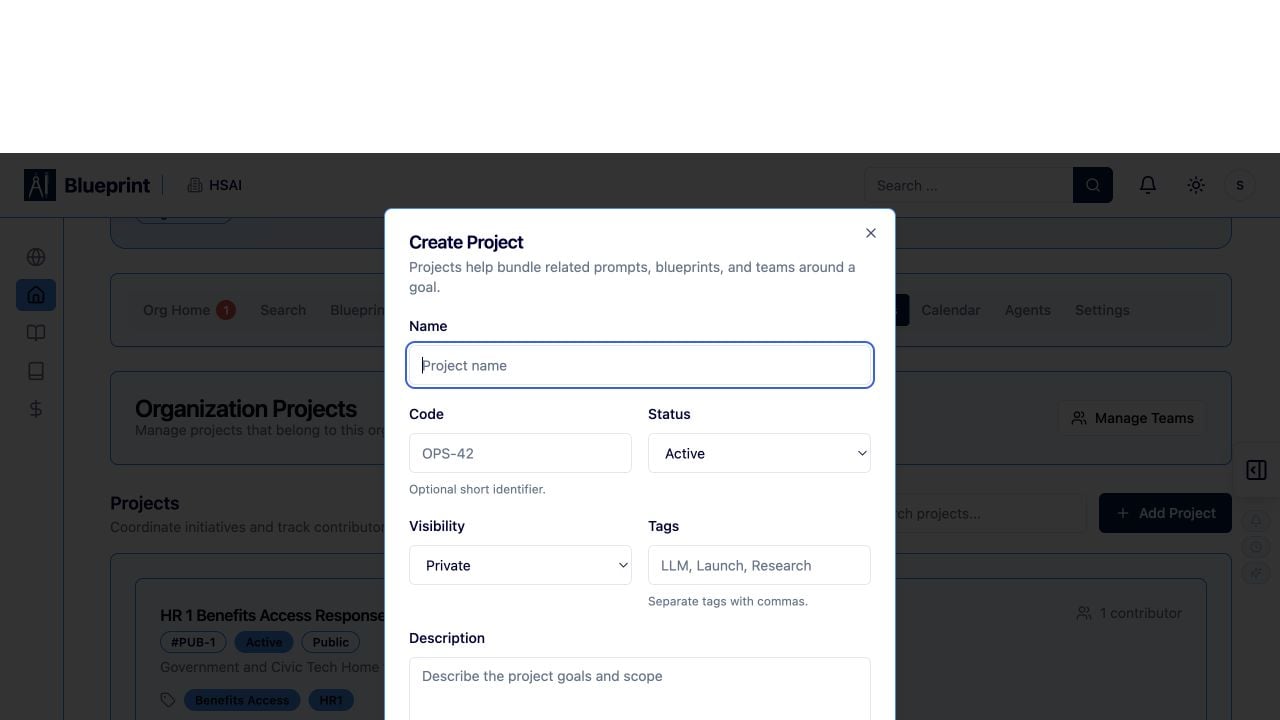 Pick **Visibility** deliberately. `Private` limits the Project to you, `Organization` opens it to your workspace, and `Public` exposes it beyond the organization. You can change visibility later, but AI-generated tasks and knowledge references inherit the Project's visibility at the moment they are created.
## Step 2 — Get oriented on the Project page
You land on the Project page. Take a minute to identify each control before doing anything else.
Header actions:
* **Open in Studio** — jumps into Project Studio, the operational workspace for this Project.
* **Refresh** — reloads goal, task, and activity data.
* **New Goal** — opens the goal planning flow you will use in Step 3.
* **Goal and task counts** — quick totals so you can see progress at a glance.
Tabs:
* **Overview** — Project summary, status, tags, description, and recent activity.
* **Tasks** — the Task Board (Step 4).
* **Timeline** — dated view of goals and tasks.
* **Team** — people and AI agents attached to the Project.
* **Knowledge** — documents and references the Project can draw on.
* **Meetings** — meetings linked to this Project.
* **Activity** — full audit-style feed of what happened and who did it.
Pick **Visibility** deliberately. `Private` limits the Project to you, `Organization` opens it to your workspace, and `Public` exposes it beyond the organization. You can change visibility later, but AI-generated tasks and knowledge references inherit the Project's visibility at the moment they are created.
## Step 2 — Get oriented on the Project page
You land on the Project page. Take a minute to identify each control before doing anything else.
Header actions:
* **Open in Studio** — jumps into Project Studio, the operational workspace for this Project.
* **Refresh** — reloads goal, task, and activity data.
* **New Goal** — opens the goal planning flow you will use in Step 3.
* **Goal and task counts** — quick totals so you can see progress at a glance.
Tabs:
* **Overview** — Project summary, status, tags, description, and recent activity.
* **Tasks** — the Task Board (Step 4).
* **Timeline** — dated view of goals and tasks.
* **Team** — people and AI agents attached to the Project.
* **Knowledge** — documents and references the Project can draw on.
* **Meetings** — meetings linked to this Project.
* **Activity** — full audit-style feed of what happened and who did it.
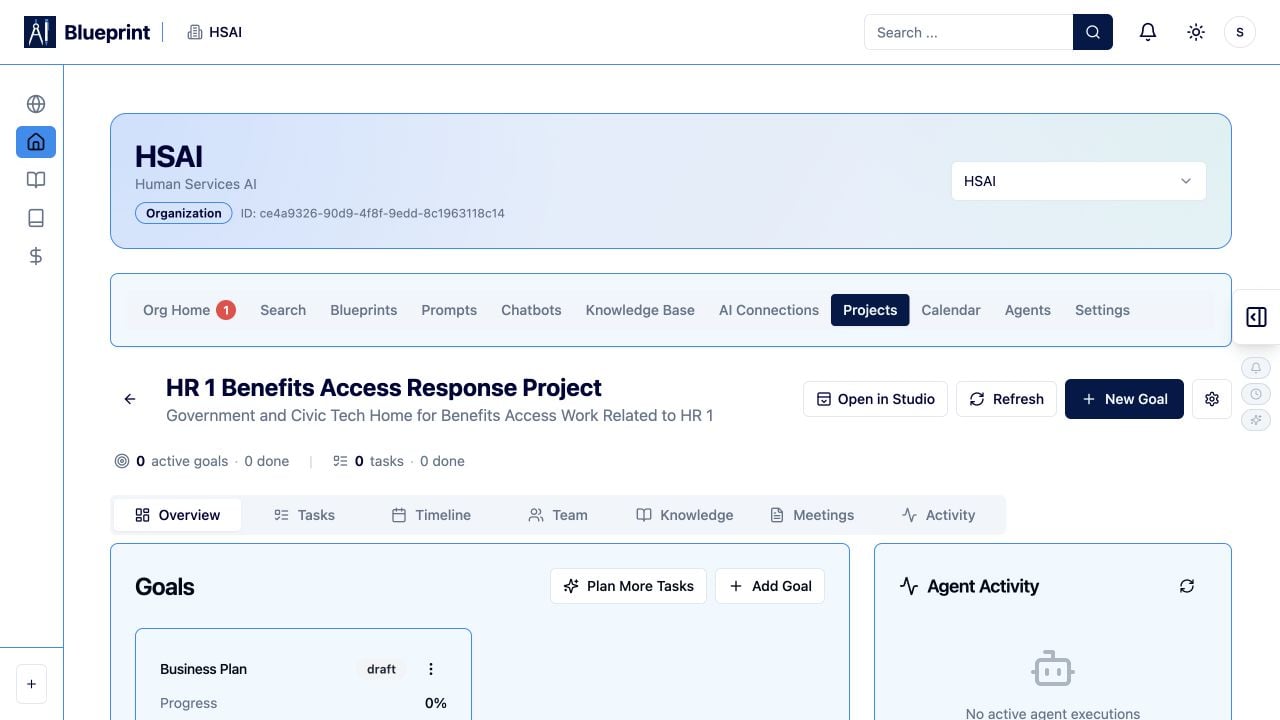 The **Activity** tab is your review trail. Any AI-generated goal, task, or edit lands here with the actor and timestamp. Use it whenever you need to explain what the AI did or when.
## Step 3 — Plan a goal with the New Goal flow
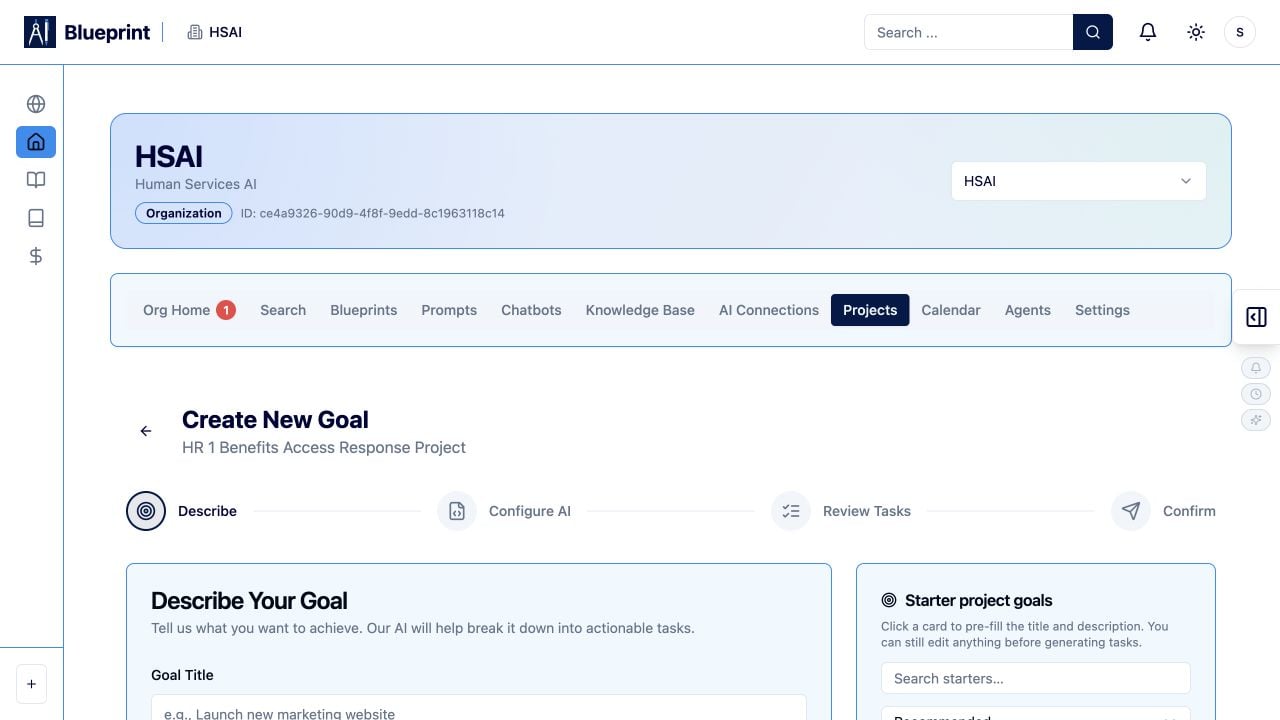
Choose **New Goal**. The flow has four steps: **Describe > Configure AI > Review Tasks > Confirm**. Move through them deliberately.
### Describe
Enter the goal details:
* **Title:** `Publish the top 10 support FAQ answers`
* **Description:** what "done" looks like, who the audience is, and any policies to respect.
* **Due date:** a realistic target for the lab.
* **Priority:** `Medium` for this scenario.
* **Context:** paste synthetic notes, links, or references the AI should ground itself in.
### Configure AI
Choose how Blueprint will plan the work:
* **AI connection and model** — pick a connection you trust for planning. A stronger model produces better decomposition; a cheaper model is fine for a small goal.
* **Maximum tasks** — cap the number of tasks the AI can generate. Keep this small for a learning lab (for example, `8`) so the plan stays reviewable.
* **Match with Blueprints** — let Blueprint search existing Blueprints and reuse them where they fit, instead of proposing new work from scratch.
* **Auto-assign AI Agents** — allow Blueprint to attach appropriate agents to tasks. Leave this off if you want to assign agents by hand.
* **Task-generation instructions** — a short instruction to steer decomposition, for example: `Group tasks by FAQ. Include a human review task before publishing.`
The **Activity** tab is your review trail. Any AI-generated goal, task, or edit lands here with the actor and timestamp. Use it whenever you need to explain what the AI did or when.
## Step 3 — Plan a goal with the New Goal flow
Choose **New Goal**. The flow has four steps: **Describe > Configure AI > Review Tasks > Confirm**. Move through them deliberately.
### Describe
Enter the goal details:
* **Title:** `Publish the top 10 support FAQ answers`
* **Description:** what "done" looks like, who the audience is, and any policies to respect.
* **Due date:** a realistic target for the lab.
* **Priority:** `Medium` for this scenario.
* **Context:** paste synthetic notes, links, or references the AI should ground itself in.
### Configure AI
Choose how Blueprint will plan the work:
* **AI connection and model** — pick a connection you trust for planning. A stronger model produces better decomposition; a cheaper model is fine for a small goal.
* **Maximum tasks** — cap the number of tasks the AI can generate. Keep this small for a learning lab (for example, `8`) so the plan stays reviewable.
* **Match with Blueprints** — let Blueprint search existing Blueprints and reuse them where they fit, instead of proposing new work from scratch.
* **Auto-assign AI Agents** — allow Blueprint to attach appropriate agents to tasks. Leave this off if you want to assign agents by hand.
* **Task-generation instructions** — a short instruction to steer decomposition, for example: `Group tasks by FAQ. Include a human review task before publishing.`
 ### Review Tasks
Blueprint generates a proposed task list. Do not accept it blindly.
* Read each task title and description. Confirm it maps to your goal.
* Use **Edit** to adjust a task's wording, owner, or estimate.
* Use **Regenerate** if the plan misses the point; tighten your description or instructions first, then regenerate.
* Remove tasks the AI invented that do not belong.
* Confirm at least one explicit human-review task exists before anything is published or sent.
### Confirm
Only confirm when the plan reflects the outcome you want. On confirmation, Blueprint creates the goal and its tasks in the Project.
**Governance checkpoint.** AI-generated tasks are drafts until a human confirms them. Treat **Review Tasks** as a required editorial pass, not a formality. If you cannot explain why a task exists, remove it or rewrite it before you confirm.
## Step 4 — Work the Task Board
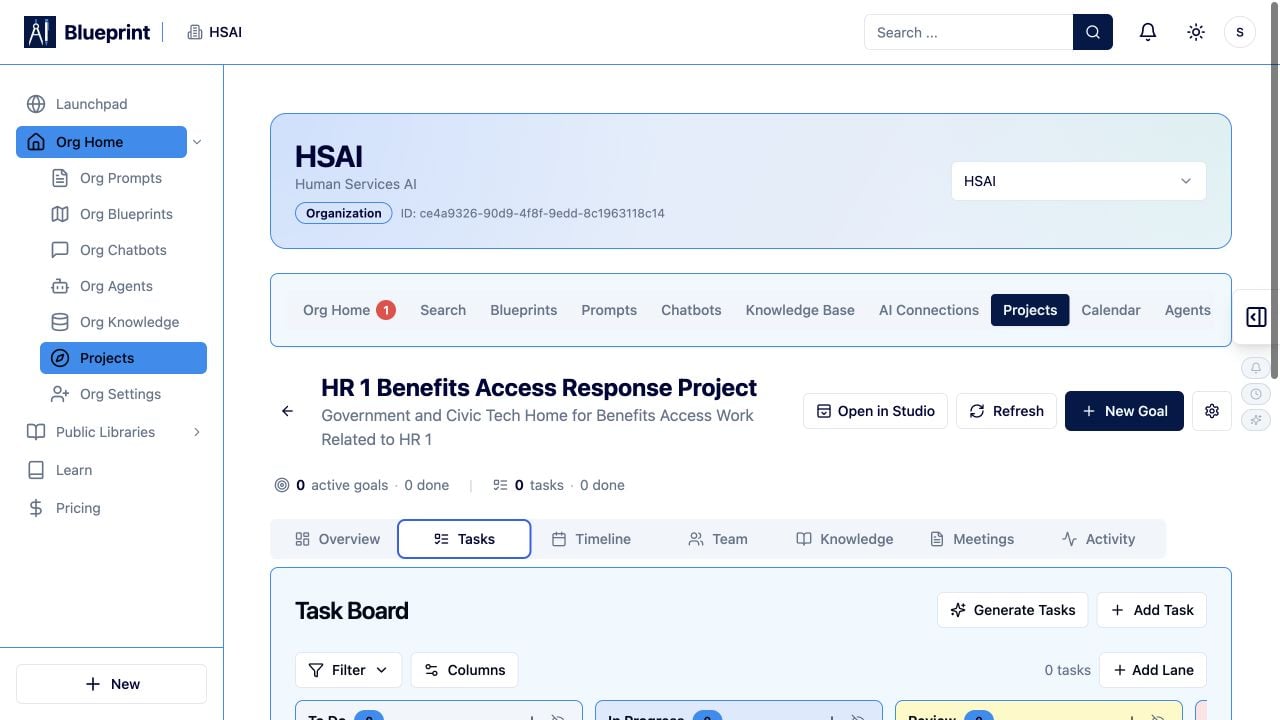
Open the **Tasks** tab. This is the Project's Task Board.
Board controls:
* **Generate Tasks** — plan more tasks against an existing goal.
* **Add Task** — create a task manually when the AI missed something.
* **Filter** — narrow by assignee, tag, goal, or status.
* **Columns** — configure which lanes and fields are visible.
Lanes:
* **To Do** — planned, not started.
* **In Progress** — actively being worked.
* **Review** — waiting on a human check before it can move forward.
* **Blocked** — something is preventing progress; add a comment explaining what.
* **Done** — completed and accepted.
### Review Tasks
Blueprint generates a proposed task list. Do not accept it blindly.
* Read each task title and description. Confirm it maps to your goal.
* Use **Edit** to adjust a task's wording, owner, or estimate.
* Use **Regenerate** if the plan misses the point; tighten your description or instructions first, then regenerate.
* Remove tasks the AI invented that do not belong.
* Confirm at least one explicit human-review task exists before anything is published or sent.
### Confirm
Only confirm when the plan reflects the outcome you want. On confirmation, Blueprint creates the goal and its tasks in the Project.
**Governance checkpoint.** AI-generated tasks are drafts until a human confirms them. Treat **Review Tasks** as a required editorial pass, not a formality. If you cannot explain why a task exists, remove it or rewrite it before you confirm.
## Step 4 — Work the Task Board
Open the **Tasks** tab. This is the Project's Task Board.
Board controls:
* **Generate Tasks** — plan more tasks against an existing goal.
* **Add Task** — create a task manually when the AI missed something.
* **Filter** — narrow by assignee, tag, goal, or status.
* **Columns** — configure which lanes and fields are visible.
Lanes:
* **To Do** — planned, not started.
* **In Progress** — actively being worked.
* **Review** — waiting on a human check before it can move forward.
* **Blocked** — something is preventing progress; add a comment explaining what.
* **Done** — completed and accepted.
 Try this now:
1. Move one task from **To Do** to **In Progress**.
2. Move one task to **Review** and add a short comment describing what needs checking.
3. Mark one task **Blocked** and note the blocker. This is how the team surfaces risk early.
Use **Review** and **Blocked** honestly. A board that skips straight from **In Progress** to **Done** hides the two states that matter most for AI-assisted work: what a human still needs to check, and where the plan broke.
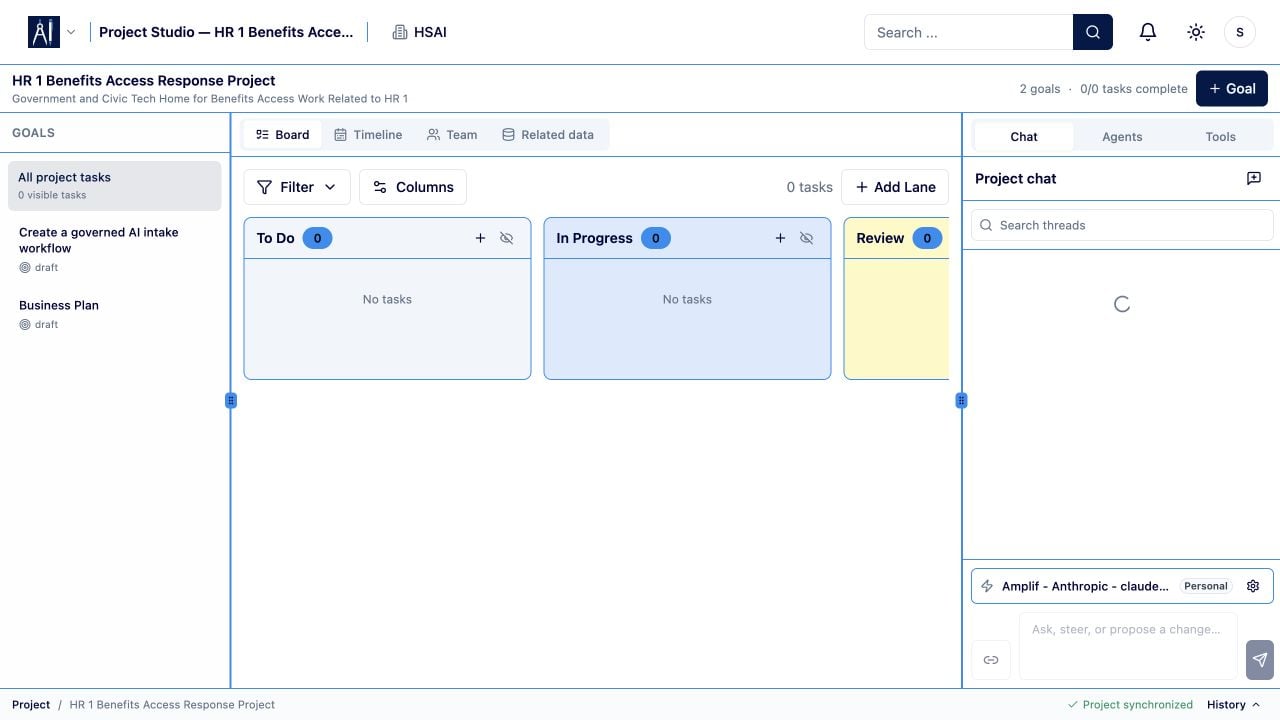
## Step 5 — Operate from Project Studio
From the Project page, choose **Open in Studio**. Project Studio is where day-to-day work happens.
Studio surfaces:
* **Board** — the same Task Board, embedded in Studio so you can act on tasks while you talk to the Project.
* **Timeline** — dated view of goals, tasks, and milestones.
* **Team** — people and AI agents on the Project, with their roles.
* **Related data** — Knowledge, files, and references the Project can draw on.
* **Chat** — a conversation grounded in this Project's context. Ask questions, request drafts, or discuss a task without leaving Studio.
* **Agents** — the AI agents available to the Project. Configure what they can do and which tasks they can pick up.
* **Tools** — the actions agents and Chat can use, for example reading Knowledge or updating tasks.
Try this now:
1. Move one task from **To Do** to **In Progress**.
2. Move one task to **Review** and add a short comment describing what needs checking.
3. Mark one task **Blocked** and note the blocker. This is how the team surfaces risk early.
Use **Review** and **Blocked** honestly. A board that skips straight from **In Progress** to **Done** hides the two states that matter most for AI-assisted work: what a human still needs to check, and where the plan broke.
## Step 5 — Operate from Project Studio
From the Project page, choose **Open in Studio**. Project Studio is where day-to-day work happens.
Studio surfaces:
* **Board** — the same Task Board, embedded in Studio so you can act on tasks while you talk to the Project.
* **Timeline** — dated view of goals, tasks, and milestones.
* **Team** — people and AI agents on the Project, with their roles.
* **Related data** — Knowledge, files, and references the Project can draw on.
* **Chat** — a conversation grounded in this Project's context. Ask questions, request drafts, or discuss a task without leaving Studio.
* **Agents** — the AI agents available to the Project. Configure what they can do and which tasks they can pick up.
* **Tools** — the actions agents and Chat can use, for example reading Knowledge or updating tasks.
 Try this now:
1. In **Chat**, ask for a first draft of one FAQ answer using the Project's Knowledge.
2. Open the matching task on the **Board** and paste the draft into a comment for review.
3. Look at **Agents** and **Tools**. Confirm that no agent has a tool it does not need for this Project.
Studio actions are Project-scoped. Chat only sees Knowledge attached to this Project, and Agents only act inside this Project. This scoping is what makes Studio safe to use with synthetic-but-sensitive content in a lab.
## Governance and review guidance
Before you finish the lab, apply these checks:
* **Visibility is intentional.** The Project's visibility matches the sensitivity of its content.
* **Every goal has a human-review task** before anything is published, sent, or written to a system of record.
* **Agents have least privilege.** Only the tools each agent needs to complete its assigned tasks.
* **Activity is legible.** Someone else could open the **Activity** tab and reconstruct what happened.
* **Blocked and Review lanes are used.** Nothing is quietly skipped.
## Troubleshooting
Your plan allows one Project and you already have one. Open your organization's usage page to buy an extra Project or upgrade the plan. If neither is possible right now, archive a Project you no longer need and try again.
You may not have permission to create Projects in this organization. Ask an organization admin to grant you Project creation, or switch to an organization where you have the right role.
Tighten the goal **Description** and the **Task-generation instructions**, lower **Maximum tasks**, and regenerate. If the model is still off, switch to a stronger model in **Configure AI**.
Confirm the Blueprint's visibility includes this organization and that its description mentions the terms in your goal. Matching relies on the Blueprint's metadata being descriptive.
Open the task, reassign the agent by hand, and remove any tools the wrong agent should not have used. Turn **Auto-assign AI Agents** off for the next goal until the agent roster is right.
Add a comment naming the specific decision needed and the person who should make it. If the reviewer is unclear, reassign the task on the **Team** tab.
## Completion checklist
You have completed the lab when you can check every box:
* [ ] Created an **Active**, **Private** Project with a clear name, description, and tags.
* [ ] Recognized every control on the Project page: **Open in Studio**, **Refresh**, **New Goal**, goal and task counts, and the tabs **Overview**, **Tasks**, **Timeline**, **Team**, **Knowledge**, **Meetings**, and **Activity**.
* [ ] Ran the **New Goal** flow end to end: **Describe > Configure AI > Review Tasks > Confirm**, including a capped **Maximum tasks**, an intentional choice about **Match with Blueprints** and **Auto-assign AI Agents**, and a review pass with **Edit** or **Regenerate**.
* [ ] Moved tasks across **To Do**, **In Progress**, **Review**, **Blocked**, and **Done** on the Task Board.
* [ ] Operated the Project from **Project Studio**, using **Board**, **Timeline**, **Team**, **Related data**, **Chat**, **Agents**, and **Tools**.
* [ ] Confirmed a human-review task exists before anything the Project produces goes to a real audience.
## Where to go next
* Deepen your planning muscle in the [Blueprint Workshop](/guides-and-learning/blueprint-workshop-build-test-and-improve).
* Attach a reviewed knowledge source to your Project with [Build a Searchable Knowledge Base](/guides-and-learning/build-a-searchable-knowledge-base).
* Turn a completed goal into a customer-facing surface with [Build and Publish a Grounded Chatbot](/guides-and-learning/build-and-publish-a-grounded-chatbot).
Try this now:
1. In **Chat**, ask for a first draft of one FAQ answer using the Project's Knowledge.
2. Open the matching task on the **Board** and paste the draft into a comment for review.
3. Look at **Agents** and **Tools**. Confirm that no agent has a tool it does not need for this Project.
Studio actions are Project-scoped. Chat only sees Knowledge attached to this Project, and Agents only act inside this Project. This scoping is what makes Studio safe to use with synthetic-but-sensitive content in a lab.
## Governance and review guidance
Before you finish the lab, apply these checks:
* **Visibility is intentional.** The Project's visibility matches the sensitivity of its content.
* **Every goal has a human-review task** before anything is published, sent, or written to a system of record.
* **Agents have least privilege.** Only the tools each agent needs to complete its assigned tasks.
* **Activity is legible.** Someone else could open the **Activity** tab and reconstruct what happened.
* **Blocked and Review lanes are used.** Nothing is quietly skipped.
## Troubleshooting
Your plan allows one Project and you already have one. Open your organization's usage page to buy an extra Project or upgrade the plan. If neither is possible right now, archive a Project you no longer need and try again.
You may not have permission to create Projects in this organization. Ask an organization admin to grant you Project creation, or switch to an organization where you have the right role.
Tighten the goal **Description** and the **Task-generation instructions**, lower **Maximum tasks**, and regenerate. If the model is still off, switch to a stronger model in **Configure AI**.
Confirm the Blueprint's visibility includes this organization and that its description mentions the terms in your goal. Matching relies on the Blueprint's metadata being descriptive.
Open the task, reassign the agent by hand, and remove any tools the wrong agent should not have used. Turn **Auto-assign AI Agents** off for the next goal until the agent roster is right.
Add a comment naming the specific decision needed and the person who should make it. If the reviewer is unclear, reassign the task on the **Team** tab.
## Completion checklist
You have completed the lab when you can check every box:
* [ ] Created an **Active**, **Private** Project with a clear name, description, and tags.
* [ ] Recognized every control on the Project page: **Open in Studio**, **Refresh**, **New Goal**, goal and task counts, and the tabs **Overview**, **Tasks**, **Timeline**, **Team**, **Knowledge**, **Meetings**, and **Activity**.
* [ ] Ran the **New Goal** flow end to end: **Describe > Configure AI > Review Tasks > Confirm**, including a capped **Maximum tasks**, an intentional choice about **Match with Blueprints** and **Auto-assign AI Agents**, and a review pass with **Edit** or **Regenerate**.
* [ ] Moved tasks across **To Do**, **In Progress**, **Review**, **Blocked**, and **Done** on the Task Board.
* [ ] Operated the Project from **Project Studio**, using **Board**, **Timeline**, **Team**, **Related data**, **Chat**, **Agents**, and **Tools**.
* [ ] Confirmed a human-review task exists before anything the Project produces goes to a real audience.
## Where to go next
* Deepen your planning muscle in the [Blueprint Workshop](/guides-and-learning/blueprint-workshop-build-test-and-improve).
* Attach a reviewed knowledge source to your Project with [Build a Searchable Knowledge Base](/guides-and-learning/build-a-searchable-knowledge-base).
* Turn a completed goal into a customer-facing surface with [Build and Publish a Grounded Chatbot](/guides-and-learning/build-and-publish-a-grounded-chatbot).