Quickstart: run and improve a Blueprint in 10 minutes
Time required: 10 minutes By the end of this quickstart, you will have forked a public Blueprint, run it with a sample input, inspected an execution, changed one instruction, added a human checkpoint, and saved a private version.Sample used in this guide: The current Public Libraries catalog does not contain a Blueprint literally named “Getting Started Blueprint.” This path uses the public Compliance-Ready Summarization Pipeline as the sample because it has a visible multi-step workflow, a model connection, test controls, and a human-review pattern.
Fork the sample Blueprint
Open the public sample Blueprint, then choose Fork to create your private working copy.
Prerequisites and plan requirements
- A Blueprint account. Create an account or sign in before forking and running the sample.
- Access to Public Libraries and permission to create a private Blueprint.
- A model connection. A default organization connection may be available; otherwise select a connection approved for your workspace.
- A plan with remaining Blueprint runs, AI tokens, compute time, and private Blueprint capacity. The Free plan is sufficient for a small first run when those limits are available; organization workspaces may require an administrator-approved connection.
- A safe sample input. Do not paste confidential, personal, regulated, or production data into this first run.
1. Sign in and open Public Libraries
Open Blueprint, create an account or sign in, and select Public Libraries from the left navigation. Search for Compliance-Ready Summarization Pipeline, open the public result, and review its description, visibility, categories, tags, required inputs, and human-review behavior before using it.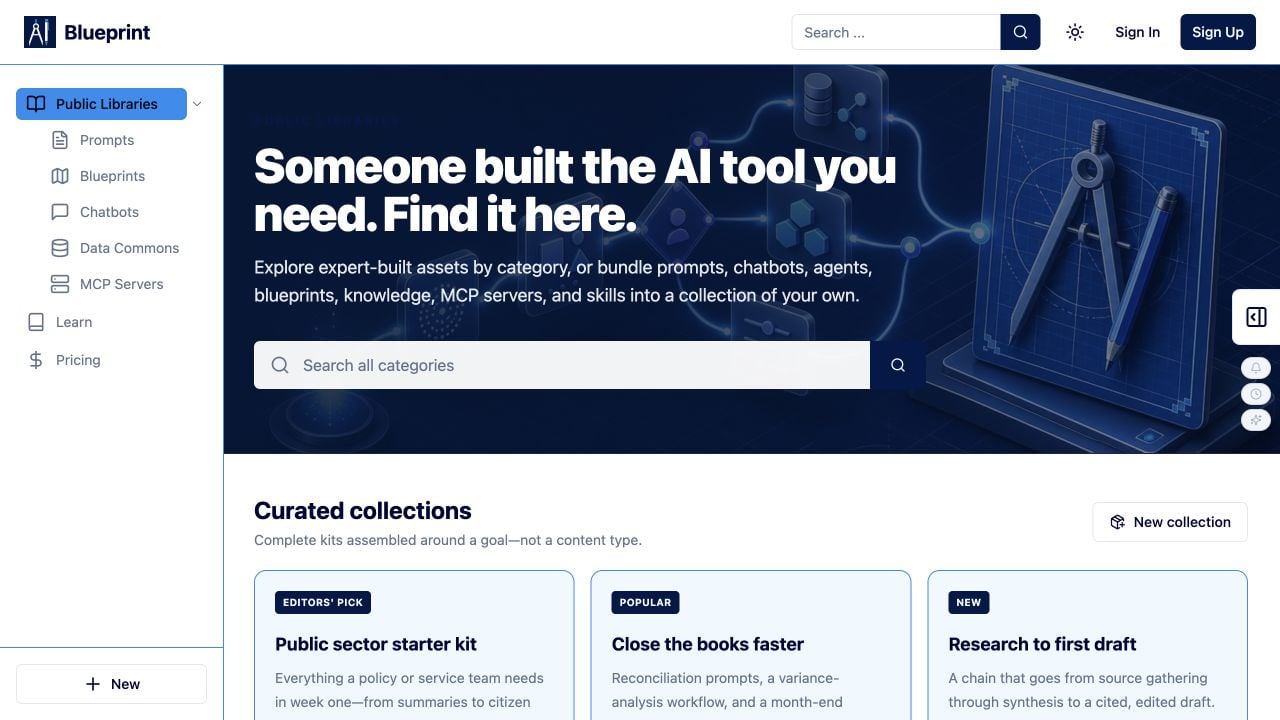
2. Fork the sample Blueprint
Open the sample Blueprint and choose Fork or the equivalent copy action. Name the copy something such as Quickstart — Grounded Summary. Forking creates your working copy so the public Blueprint remains unchanged. Keep the copy private while you test it.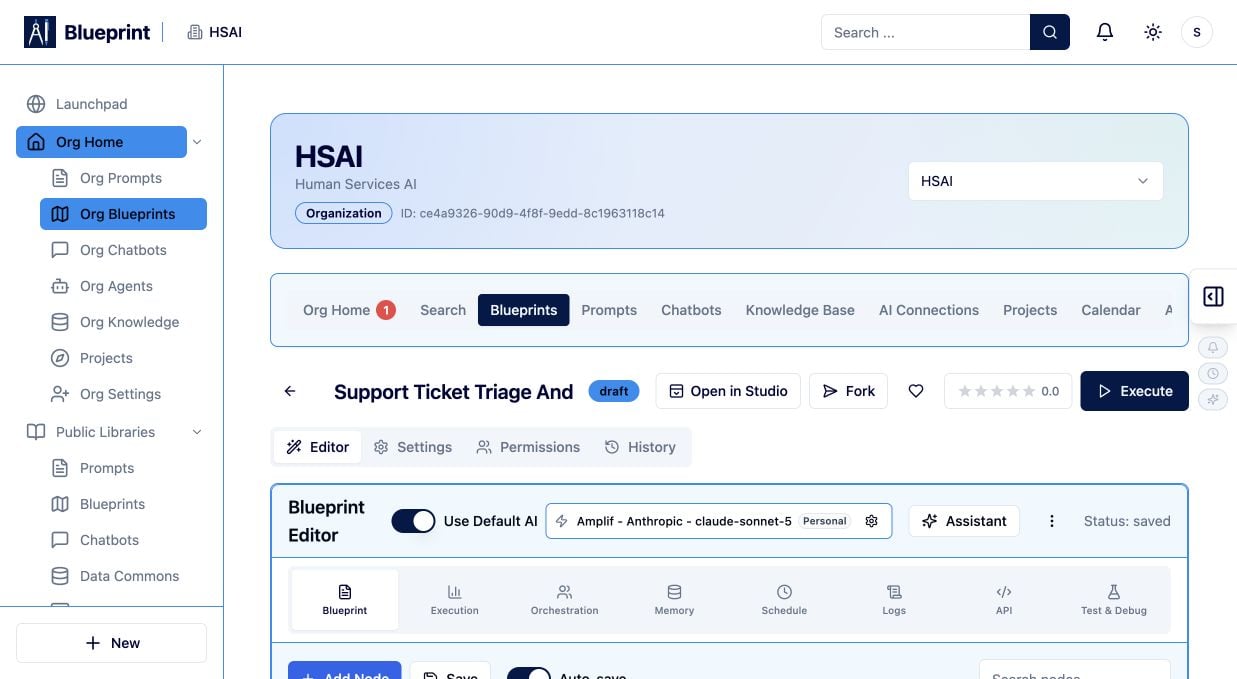
3. Select a model
In the Blueprint editor, review the current AI connection. If the sample uses a default connection, you may see Use Default AI and the selected model. Select Change AI connection or model when you need to choose another approved connection. Confirm that the model is available before running the Blueprint.4. Enter the sample input
Use this safe sample input. Copy it into the first input field or test variable shown by the Blueprint:5. Run the Blueprint
Open Test & Debug and stay on Dry Run. If you need a real model response, turn on Use Live AI Provider and confirm that the selected connection is approved. Select Run All. Wait for the run to complete before changing the Blueprint.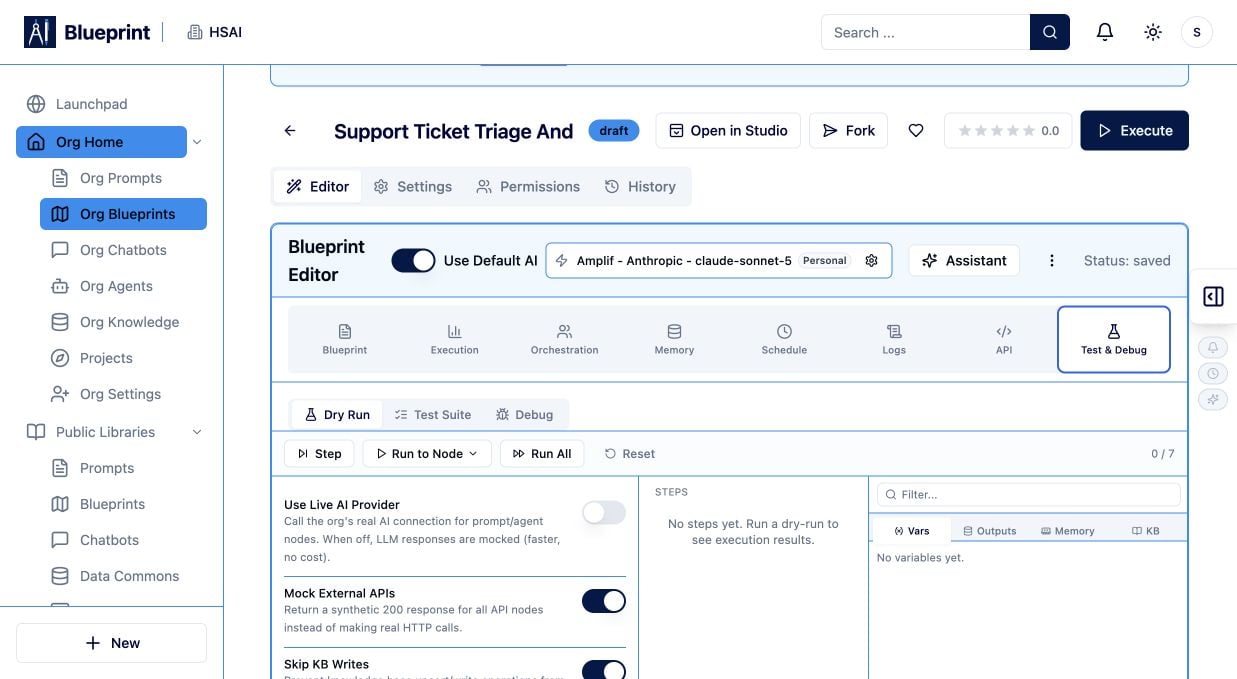
If you do not see this…
- If Run All is unavailable, confirm that the Blueprint is saved and that you are on Test & Debug → Dry Run.
- If the live provider switch is unavailable, select an approved model connection or ask your administrator to configure one.
- If the run stops immediately, review the node error and check your remaining tokens, compute time, and Blueprint-run limit.
- If the output invents facts, keep the source-only constraint, tighten the AI instruction, and run again.
- If the fork button is missing, confirm that you opened the public asset rather than an organization copy and that your account can create a private Blueprint.
6. Inspect one node’s result
Open Execution and start the execution if it has not already been started. Select one completed node in the visualizer, then open Step Details. Record:- The node input.
- The node output.
- The node status.
- The node latency.
- The token usage.
7. Change one instruction and compare a second run
Return to the Blueprint editor and change only one instruction. For example, add:Keep the final summary under 80 words and put the human review decision last.Save the draft, run the same sample input again, and compare the second output with the first. Note whether the length, ordering, and factual grounding changed as expected.
8. Add a human checkpoint
In the Blueprint editor, choose Add Node, filter to Human-in-the-Loop, and select Human Checkpoint. Place the checkpoint after the grounded summary node and before the result is published or passed to the next external action. Give it a title such as Review before publication, define the review instructions, and specify who should approve it. Use a checkpoint when a person must review accuracy, safety, permissions, or policy before the workflow continues.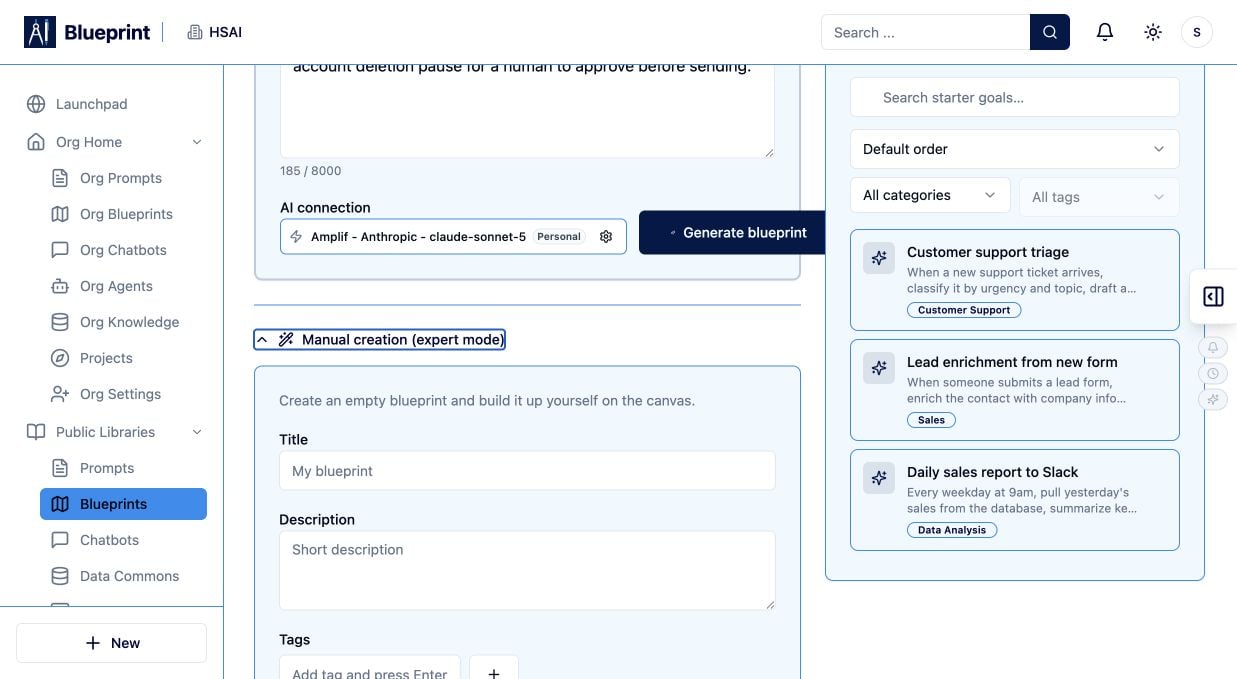
9. Save a private version
Select Save in the Blueprint editor and add a note such as Quickstart: added grounded summary constraint and review checkpoint. Keep the working copy private in Permissions or the Blueprint settings. Do not select Publish to Org or publish to Public Libraries during this quickstart. You now have a private, tested version with a repeatable run, an inspected node, a controlled instruction change, and a human review gate.Short starts by role
Explorer: discover and run an existing asset
Open Public Libraries, search by goal or category, open an asset, review its description, inputs, visibility, dependencies, and data handling, then choose Run, Chat, or Use this KB when available. Fork the asset before changing it.Builder: create a Blueprint
From Launchpad or Org Home, select New → New Blueprint. Start with one clear input, one model step, and one expected output. Run it in Test & Debug, inspect the execution, and add data, logic, tools, or human review only when the task requires them.Chatbot builder: publish a grounded assistant
Select New → New Chatbot, enter its name and description, then configure Manage, Knowledge, Configure, Test Scenarios, and Deployments. Test grounded questions and out-of-scope requests before choosing Organization or Public visibility.Developer: execute a Blueprint through the API
Open a Blueprint’s API tab to review the available execution documentation and authentication requirements. Use a private or organization-approved Blueprint, send a safe test input, and verify the returned execution status and output before integrating it into an application.Organization administrator: invite users and configure approved connections
Open Org Home and Org Settings to invite users, assign organization roles, and manage approved model connections. Confirm seat and plan limits, establish which connections teams may use, and define the review process for organization and public assets.This guide takes you from discovery to a tested, shareable AI tool. You will orient yourself in the Blueprint workspace, find a public or organization-owned starting point, build a Prompt, Blueprint, Chatbot, or Agent, and verify the result before sharing it.