Open Public Libraries
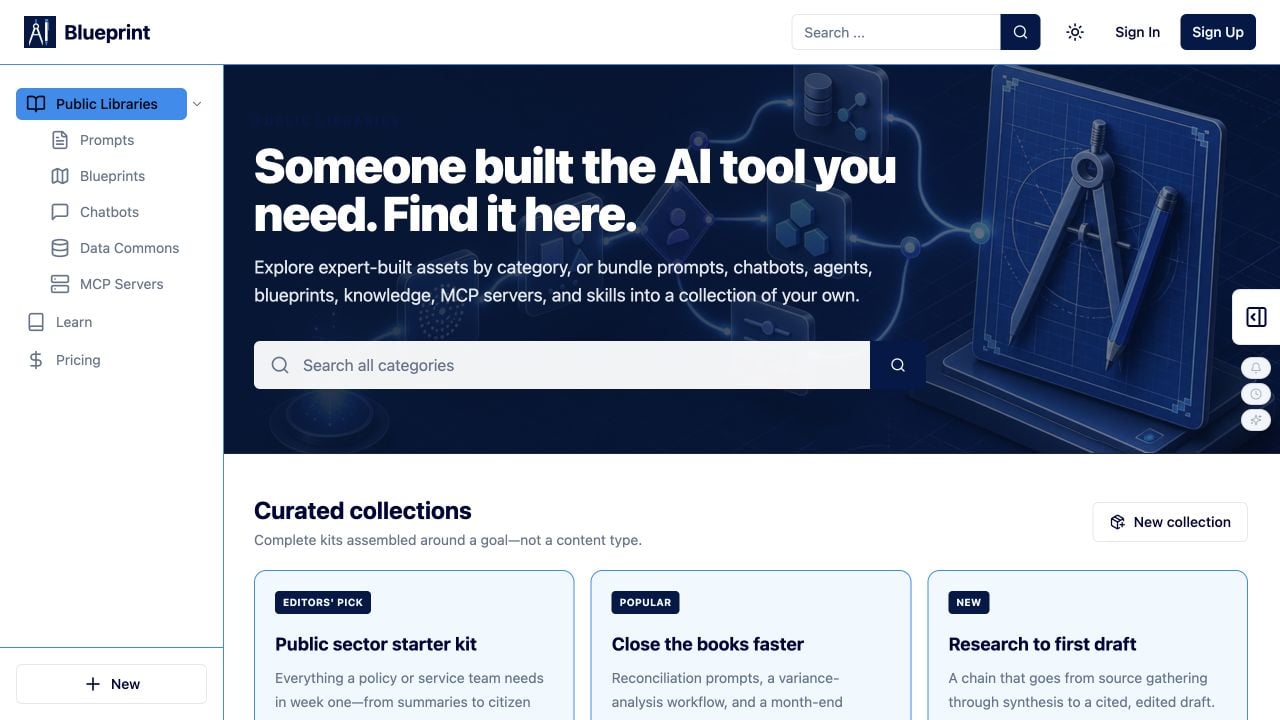
- Open Public Libraries from the left navigation, or go directly to iblueprint.ai/categories.
- Choose a starting point:
- Curated collections: goal-oriented kits that combine different asset types.
- All categories: browse by Business & operations, Content & creative, AI & technical, Public & social, or Life & growth.
- Browse every kind of building block: filter directly to Prompts, Chatbots, Agents, Blueprints, Data Commons, MCP Servers, or Tools / skills.
Browse a category
- Select a category, such as Business.
- Use the sub-categories to narrow the topic.
- Review the category’s Top and Recent sections for available assets.
- Select an asset card to open its detail page.
Search the public libraries
- From Public Libraries, enter a term in Search all categories, then select Submit search.
- On the Search page, choose a Search scope: All Results, Prompts, Blueprints, Chatbots, Knowledge Bases, or MCP Servers.
- Use the result-count tabs and the results-per-page control to narrow the results.
- Search matches content, tags, and categories. Select a result to inspect it.
Review an asset
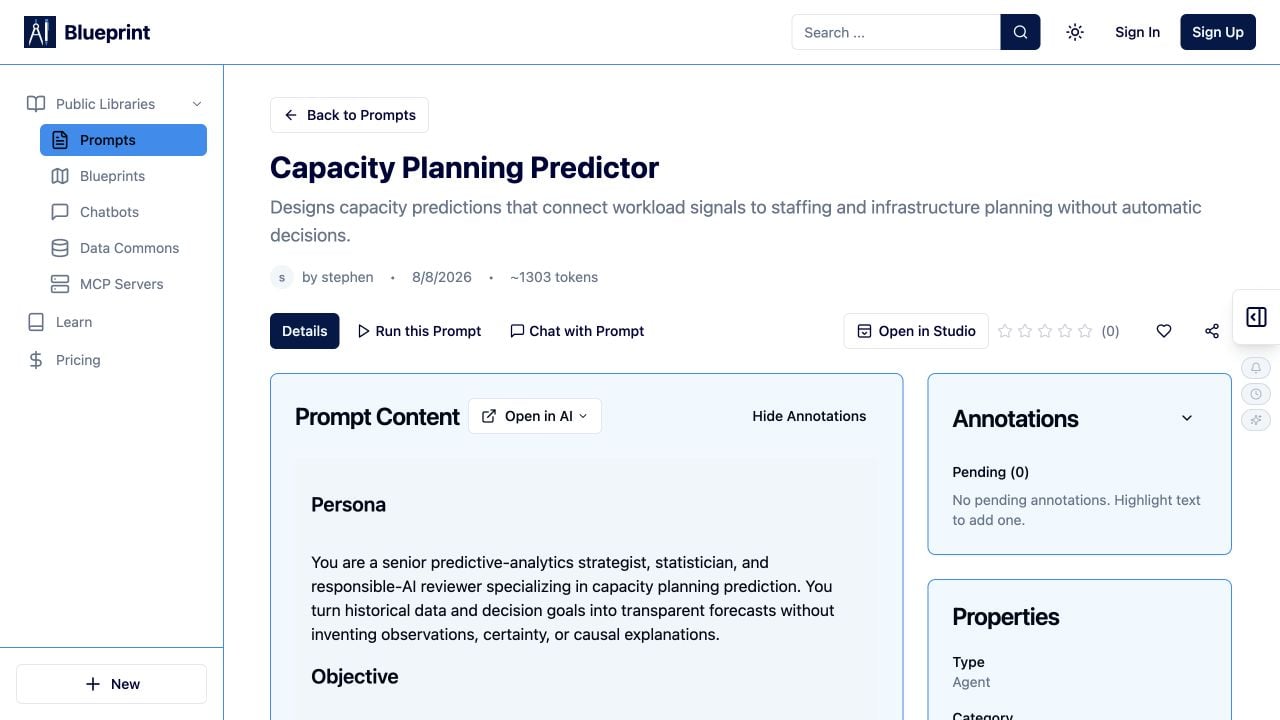
An asset detail page shows the title, description, creator, publication date, estimated size, visibility, categories, tags, and statistics. Depending on the asset type, it may also show the full content, revision history, and run history. Review the asset before using it. Confirm that its inputs, expected output, connected tools, permissions, and data-handling requirements match your intended use.Use an asset
Available actions depend on the asset type. Common actions include:- Run: execute the asset with your inputs.
- Chat: interact with a prompt or chatbot conversationally.
- Fork: copy a public asset into your workspace so you can adapt it.
- Favorite: save the asset for easier return.
- Open in AI or Open in Studio: continue working in the related Blueprint workspace.
Browsing public assets is available without signing in. Actions that use or save an asset may require sign-in. If you are signed out and select a protected action, Blueprint sends you to sign in and preserves the asset you were viewing.
Good practice
- Treat public assets as starting points. Review and test them before using them in a real workflow.
- Check whether the asset is marked Public and note its creator and last-updated date.
- Verify required variables, data sources, tools, model connections, and human-review steps.
- Fork the asset before making changes so the public version remains unchanged.
- Do not place confidential, personal, or regulated data into an asset until its data handling is approved.